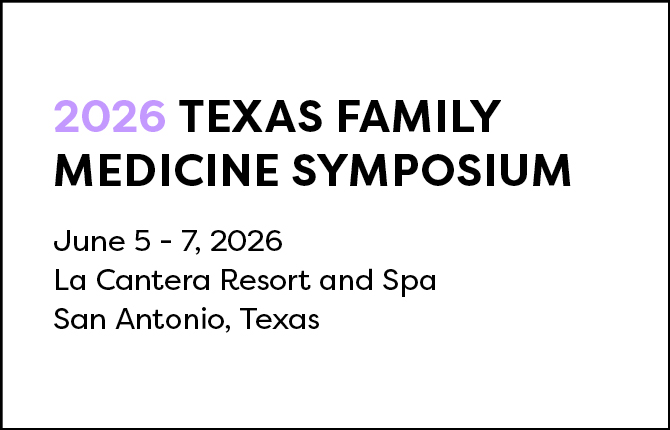
General conference information
Signia by Hilton La Cantera Resort and Spa
16641 La Cantera Parkway
San Antonio, TX 78256
(210) 558-6500
Parking
Parking for TAFP attendees is free if you follow these easy steps.
Everyone will park in the resort's main lot. Be sure to take your vehicle license plate number with you into the hotel.
If you are staying at the hotel, they will validate your parking at the check-in desk when you arrive.
If you are driving in each day, you will scan the QR code at the TAFP registration desk. Enter your vehicle license plate number and submit. Attendees NOT staying at the hotel will have to do this each time you enter the lot. This process only works once you are on property.
Registration
The registration desk will be open from 5 to 6 p.m. on Thursday in the San Lorenzo Foyer, on the 3rd level of the hotel. For the remainder of the conference, registration will open at 7:15 a.m. each morning in the San Antonio foyer on the 2nd level of the hotel.
Attending online?
You will receive an email containing the link to the live stream in the days leading up to the event. Simply click the link from your computer or your mobile device and follow the on-screen instructions.
TAFP Events App
The free TAFP Events App includes the conference schedule, CME evaluations, speaker information, lecture materials, and more, all at the touch of a finger. Please see staff at the registration desk with any questions.
Download the TAFP Events App
Download the app from Google Play
Set up
- Search "TAFP Events" in the app store.
- Install and open the app.
- Click on the 2026 Texas Family Medicine Symposium under "Upcoming Events."
Log in
To complete evaluations or access lecture materials, you will be asked to log in to the app.
- Enter your name and the email address used for conference registration.
- You will receive an email with a verification code (and a text if TAFP has your mobile number).
- Enter the verification code in the app to log in.
- You can also access the information and evaluations on a computer here.
If you do not get an email or text verification, you may have registered with a different email address. After you have been idle in the app for 24 hours, you will be asked to log in again and a new verification code will be sent.
Complete CME evaluations in the app
- Click the "Schedule" icon.
- Each CME session page has links for its evaluation and lecture materials.
- Complete the evaluation and click "Done."
- Track your evaluations by clicking the "Home" icon, scrolling down, and clicking the "Complete Evaluations" button on the home screen.
You can access CME evaluations the same way on a computer here through the session schedule or by clicking the "Complete Evaluations" icon on the home screen. Your CME certificate will reflect the credits earned through full participation in the session and completion of the evaluation.
TAFP Events App FAQs
I want to use the app on my computer. Is there a browser link?
You can access the same information by going here. You will be asked to provide your name and the email address used for your registration. You will be sent an email with a verification code and if you have a mobile number on file with TAFP, you will also receive a text with the code. If you do not get an email or text verification, you may have registered with a different email address.
Where do I get a verification code?
To access certain features in the app, you will be required to log in. Enter your name and email address. This will generate a verification code that will be emailed to you, as well as texted if you have a mobile phone in our system. This verification process will be repeated after being idle in the app for 24 hours. If you do not receive an email or text, you may have registered with a different email address. See the staff at the registration desk for assistance.
Where can I locate the schedule for TFMS 2026?
Click the "Schedule" icon in the bottom menu. You should see two tabs — "My Schedule" and "All Sessions" — and buttons for each day to view the schedule.
Where are CME evaluations located in the app?
From the schedule, click on a session title. Within each session page you will find an evaluation link at the bottom. You can also access all CME evaluations by clicking the "Complete Evaluations" button on the home screen of the app.
How do I earn CME credit using the app?
To earn your CME credit, click the "Evaluation" link under each CME session and complete the evaluation for that topic. Be sure to hit "Done" to submit. The app will calculate your CME credit based on the sessions that you evaluate.
Where are the lecture materials located in the app?
The lecture materials for each CME session are under the schedule. Click the presentation title and you will see “Lecture Materials” toward the bottom of the page. Some slides are large and may take a few seconds to load on your device.
Where can I answer audience polling questions in the app?
Audience polling can be found under each session that includes polling questions in the presentations. Not every speaker will use this tool. You will see a “Polling Questions” button under each session with polling questions. Click the button, and as the speaker gets to a question in their slide presentation, the question will appear.